
Xnapper
What is Xnapper?
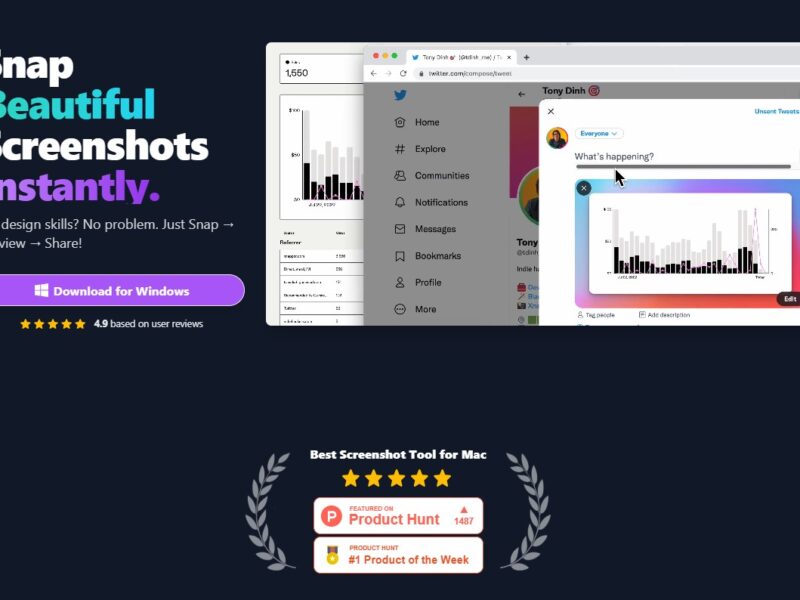
Xnapper is an advanced screenshot and screen capture tool designed to help users quickly capture, edit, and share images from their screens. It is equipped with a variety of tools that make screenshot capture easy, customizable, and efficient. Whether you’re capturing a portion of your screen, an entire page, or specific areas for editing, Xnapper provides an intuitive interface to make the process as smooth as possible. The tool also includes options for annotation, direct sharing, and integration with popular platforms, making it ideal for content creators, marketers, developers, and business professionals alike.
Features
-
Multiple Capture Options
Xnapper offers flexible capture options including full-screen, window, region, and scrolling screenshots. This gives users the ability to capture exactly what they need, from small sections to entire web pages. -
Advanced Editing Tools
Once a screenshot is captured, Xnapper provides an in-built editor with a wide range of tools. You can crop, annotate, highlight, blur, and add text to your screenshots, ensuring your captures are both clear and visually informative. -
Direct Sharing
Xnapper integrates with several cloud-based platforms, allowing users to quickly share their screenshots through links. You can upload your images to platforms like Google Drive, Dropbox, or even social media networks with just a click. -
Customizable Hotkeys
The tool allows users to set up customizable hotkeys for faster, more efficient screenshot capture. This feature saves time and enhances the user experience for those who need to take multiple screenshots in a short period. -
Cloud Storage Integration
Xnapper integrates seamlessly with popular cloud storage services, enabling automatic upload and backup of your screenshots. This ensures that your images are easily accessible from any device, at any time. -
Cross-Platform Compatibility
Xnapper is designed to work on both Windows and macOS, ensuring that users on different operating systems can access its features and benefits. -
Annotations and Watermarking
Whether you’re using Xnapper for professional purposes or just for fun, you can add annotations and custom watermarks to your screenshots. This is especially useful for branding and sharing images for marketing purposes.
Pros & Cons
Pros:
-
Intuitive Interface: Xnapper has a user-friendly interface that is easy to navigate, even for beginners. The tool is designed to make screenshot capture and editing as simple as possible.
-
Rich Editing Features: The built-in editor offers a range of powerful features, including annotations, cropping, and text addition, making it more versatile than basic screenshot tools.
-
Fast Sharing: With cloud integration and the ability to directly share screenshots, Xnapper makes it quick and easy to share captured images with colleagues, clients, or friends.
-
Customizable Hotkeys: The option to customize hotkeys allows users to increase productivity by speeding up the screenshot process.
-
Cross-Platform Support: Available for both Windows and macOS, making it accessible to a wide range of users.
Cons:
-
Limited Advanced Editing: While Xnapper offers a solid set of editing tools, it may not be as feature-rich as more advanced image editing software like Adobe Photoshop or GIMP.
-
No Mobile App: Currently, Xnapper is only available for desktop users (Windows and macOS). There is no mobile version, which may limit users who want to capture screenshots on the go.
-
Cloud Storage Dependence: Some users may find the reliance on cloud storage for quick sharing inconvenient, especially if they prefer to keep their files offline.
Use Cases for Xnapper:
-
Content Creators
Xnapper is ideal for content creators who need to capture, annotate, and share screenshots for blogs, videos, or social media posts. The ability to quickly edit and customize visuals makes it perfect for digital marketing efforts. -
Software Developers
Developers can use Xnapper to capture screenshots of error messages, UI elements, or code snippets. The editing features allow for clear annotations, which can be used for bug reports or documentation. -
Business Professionals
Whether it’s for internal communication, client presentations, or creating tutorials, Xnapper allows business professionals to capture relevant information, annotate it, and share it with ease. -
Educational Use
Teachers and educators can leverage Xnapper to create instructional materials or presentations that require visual aids. Its simple editing tools can help enhance the learning experience by adding notes or highlights to screenshots. -
E-commerce and Marketing Teams
E-commerce managers and marketing teams can use Xnapper to capture product images, promotional materials, or competitive analysis screenshots. The ability to add text or annotations makes it easier to customize images for presentations and marketing campaigns.
Xnapper Compared to Other Tools
When comparing Xnapper to other popular screenshot tools like Snagit, Lightshot, and Greenshot, here are some key differences:
-
Snagit: Snagit is a well-known screen capture tool that offers advanced features, including video capture and more extensive editing options. However, Snagit is more expensive and may be more complicated for users who only need basic screenshot functionality. Xnapper, on the other hand, provides a simpler, more affordable solution for those who need an efficient, all-in-one screenshot tool without the complex features.
-
Lightshot: Lightshot is a free tool that allows users to capture and edit screenshots. However, it lacks the more advanced editing and cloud storage integration offered by Xnapper. Xnapper’s added features like customizable hotkeys, cloud sharing, and better cross-platform support make it a stronger option for power users.
-
Greenshot: Greenshot is another free tool, but like Lightshot, it lacks many of the advanced features that Xnapper offers, such as direct sharing to cloud platforms, customizable hotkeys, and a broader range of editing tools. Xnapper provides a more comprehensive solution for users who require better integration and functionality.
Xnapper is a versatile, user-friendly screenshot tool that offers a wide range of features designed to enhance productivity, streamline the screenshot process, and improve visual communication. With its powerful editing tools, cloud storage integration, and cross-platform support, it’s an excellent choice for professionals, content creators, and developers who need an easy and efficient way to capture, edit, and share screenshots. While it may not be as feature-rich as high-end image editing software, Xnapper strikes a balance between simplicity and functionality, making it a perfect solution for everyday screenshot needs.
If you’re looking for a tool that combines easy capture, robust editing, and fast sharing, Xnapper is definitely worth considering.
FAQs
1. Is Xnapper free to use?
Xnapper offers a free version with basic features, but some advanced functionalities, such as cloud storage integration and premium editing tools, are only available in the paid version.
2. Can I use Xnapper on Linux or mobile devices?
Currently, Xnapper is only available for Windows and macOS. There is no version available for Linux or mobile devices.
3. How do I share screenshots using Xnapper?
Xnapper allows you to directly share screenshots to cloud platforms such as Google Drive and Dropbox, or generate a shareable link for easy distribution.
4. Does Xnapper offer any video capture features?
No, Xnapper focuses on screenshot capture and editing. For video capture and screen recording, tools like Snagit or OBS Studio are better suited.
5. Can I customize the hotkeys in Xnapper?
Yes, Xnapper allows users to set up customizable hotkeys for faster and more efficient screenshot capture, making it easier to take multiple screenshots in quick succession.